
Accepting an Invitation
Join a company on Polydom by accepting an invitation from an existing team member.
What Is an Invitation?
An invitation allows an existing team member to add you to their company on Polydom. You'll receive a unique link that connects you to the company when you create an account or log in.
Step 1: Click the Invitation Link
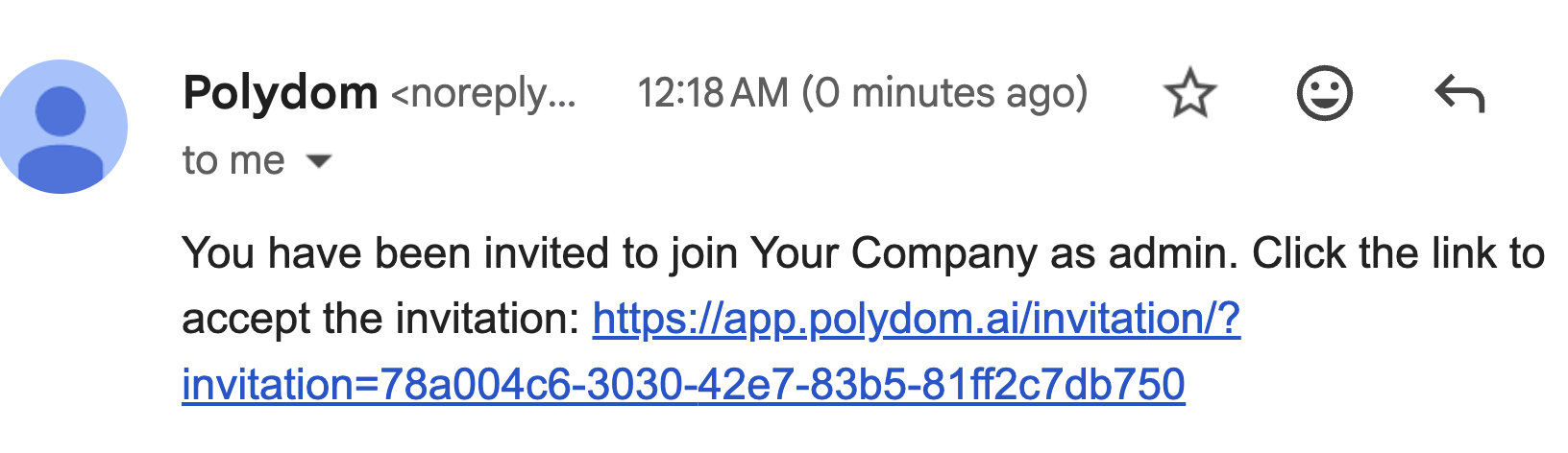
You will receive an email from Polydom with an invitation to join the company.

Open the email and click the invitation link inside.
Step 2: Review the Invitation
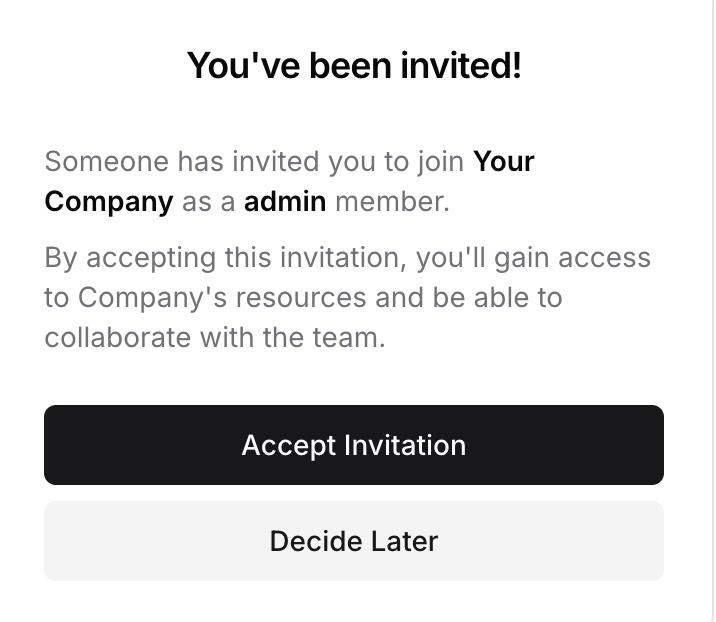
You'll see the invitation details — the company name and the role you're being assigned.
Step 3: Accept or Postpone
Accept the Invitation
Click "Accept Invitation"
If you already have an account, you'll be taken to login — your email is pre-filled
If you're new, you'll be taken to sign-up — complete registration as normal
Your account will be automatically connected to the company
Postpone Your Decision
Click "Decide Later"
The invitation remains active for 7 days
You can return using the same link when ready
For Existing Users
If you already have a Polydom account:
Click the invitation link
Click "Accept Invitation"
Log in with your credentials
The company appears in your dashboard immediately
For New Users
If you don't have an account yet:
Click the invitation link
Click "Accept Invitation"
Complete sign-up (email, password, verification, profile)
The company is added to your dashboard upon completion
After Accepting
Once accepted:
The company appears in your company list on the dashboard
You have access based on your assigned role
You can start collaborating immediately
Troubleshooting
Invalid or expired invitation — the link may be over 7 days old. Ask the inviter to send a new one
Wrong email — the invitation is tied to a specific email. Use the email it was sent to
Already a member — you may have already accepted this invitation. Check your dashboard
If you are the one sending invitations, see Inviting Members.