
Switching Between Companies and Agents
How to switch between multiple companies and agents, manage multi-company accounts, and understand company roles.
Company and Agent Hierarchy
Companies — top-level organizations you manage
Agents — agents that belong to a company
You — your account can have access to multiple companies with different roles
Switching Companies
At the top of the sidebar, click the Company Selector dropdown. It shows your current company's logo and name.
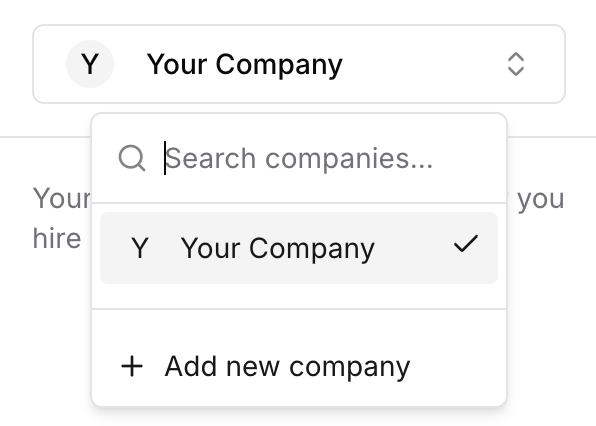
Click the company selector
A list of all your companies appears
Use the search field to filter by name (useful if you manage many companies)
Click a company to switch to it
The agent list updates automatically
Creating a New Company
At the bottom of the company selector dropdown, click "Add new company" (plus icon). Fill in the company details and submit. The new company will be selected automatically.
Company Roles
Your access level is determined by your role:
Owner — full access including billing, member management, and ownership transfer
Admin — can manage agents, settings, and invite members
Read-only — can view everything but cannot make changes
If you have a "readonly" role, the "Hire New Agent" button and edit features will be hidden.
Switching Agents
Once a company is selected, its agents appear in the sidebar:
Click any agent's name to open its dashboard with statistics
The card expands to show sub-navigation (Conversations, Records, Agent Settings, etc.)
Click a sub-menu item to navigate to that section
If a company has no agents, you'll see: "Your agent list will appear here after you hire your first agent."
Agent Status Indicators
Active (green badge) — agent is paid and running
Inactive (gray badge) — agent is not operational
Past Due (orange warning icon) — payment has failed, update billing to reactivate