
Creating Your Account
Set up a new Polydom account by registering with your email, creating a password, completing your profile, and verifying your email address.
Getting Started with Polydom
Creating your account is the first step to getting started with the Polydom platform. The process takes just a few minutes and involves registration, profile setup, and email verification.
Step 1: Go to the Sign-Up Page
Navigate to the Polydom sign-up page or click the "Sign up" link from the login page.
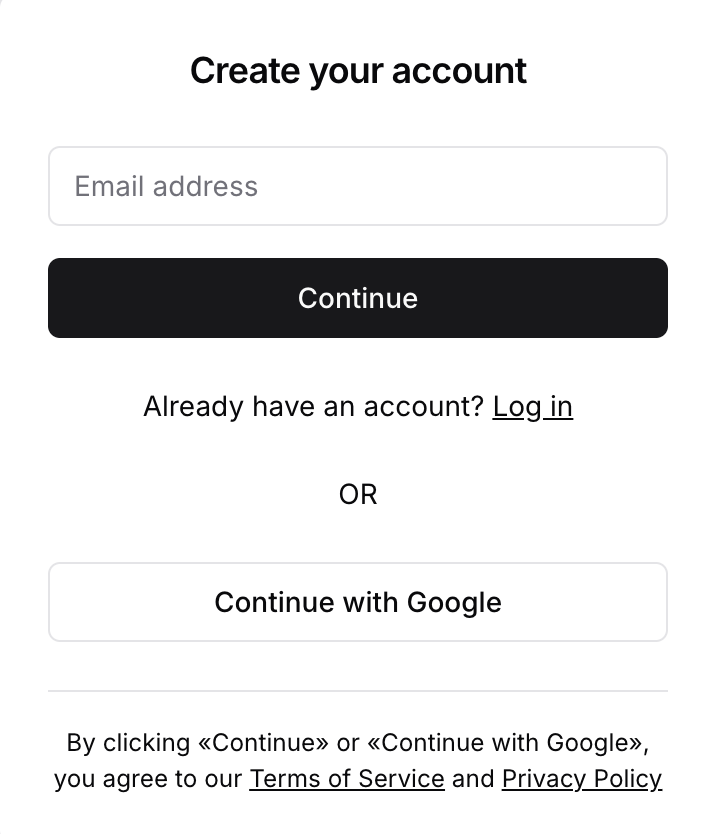
Step 2: Enter Your Email Address
On the first screen, you'll see a form asking for your email address.
Enter the email address you want to use for your account
Make sure it's a valid email address — you'll need access to it to verify your account
Click the "Continue" button to proceed
Step 3: Create Your Password
After entering your email, the form will advance to the password step.
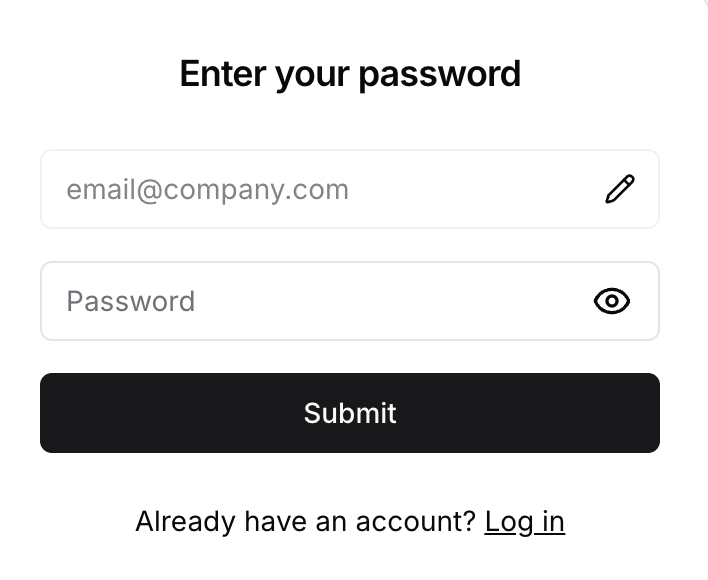
Enter a secure password
Click the eye icon on the right to show or hide your password as you type
Click the pencil icon next to your email if you need to go back and change it
Click "Submit"
Step 4: Complete Your Profile
After submitting your password, you'll see the profile form right away.
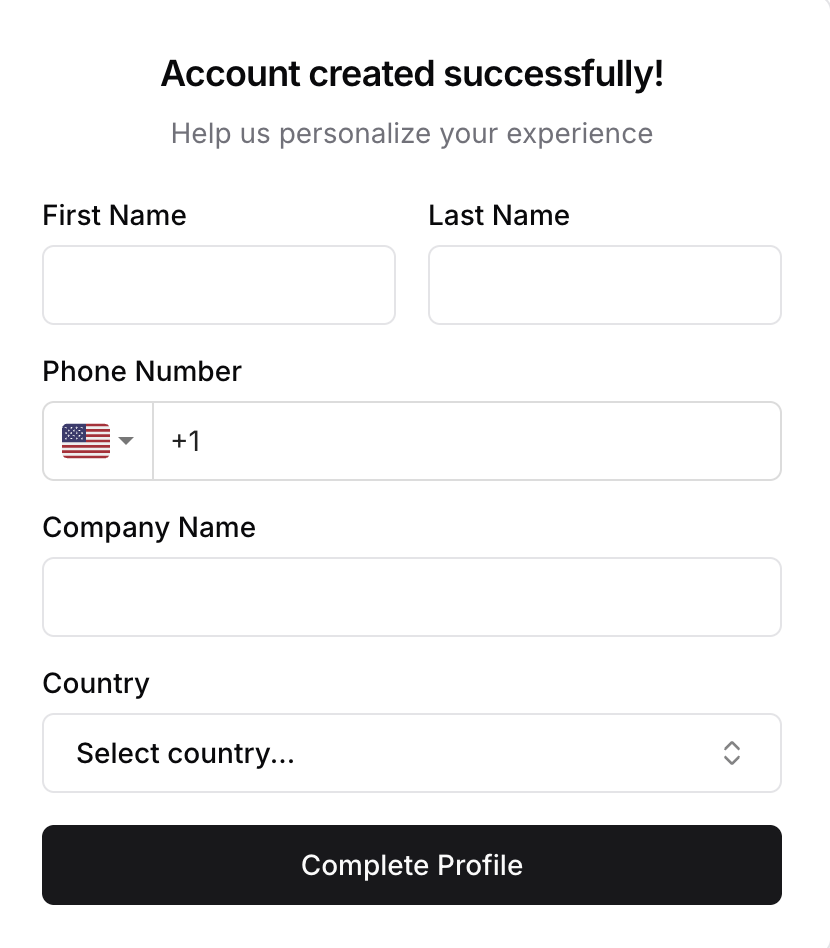
Enter your first name
Enter your last name
Enter your phone number — select your country code and input your number
Enter your company name
Select your country from the dropdown
Click "Complete Profile"
Once complete, you'll be redirected to your dashboard.
Step 5: Verify Your Email Address
After completing your profile, check your inbox for a verification email.
Check your email inbox for a message from Polydom
If you don't see it, check your spam or junk folder
Click the verification link in the email
The page will confirm that your account has been verified
Signing Up with Google
Alternatively, you can create an account using your Google account:
On the sign-up page, click "Continue with Google"
Sign in with your Google account
Grant Polydom permission to access your email
You'll be returned to Polydom with your account created
Complete the profile information step
Using Google sign-up is faster since your email will be automatically verified.
Troubleshooting
Email verification link expired: Contact support to send a new verification email
Email not received: Check your spam folder. If still missing, contact support
Already have an account: Try logging in instead, or use password recovery