
Paying for and Activating Your Agent
Start a subscription for the agent the Polydom team set up, bring an inactive agent back, and fix a failed payment.
On this page
If the Polydom team set up Una for you, Una works on your dashboard before you pay anything. An Owner or Admin starts the subscription from a banner on Una's dashboard, and nothing about Una changes: settings, knowledge base and conversations stay as they are.
Bought Una yourself? You've already paid in the purchase form. The sections below on inactive agents and failed payments still apply.
The Banner
Click your agent's name in the sidebar to open Una's dashboard. Owners and Admins see the banner at the top. Members with the Readonly role don't.

Sandbox Agent means Una is working without a subscription yet. If the banner shows an Expires date, Una becomes inactive and stops answering guests when it passes. If you need more time, talk to the Polydom team.
Paying
-
Click Pay for subscription
On a phone, the button reads Pay now.
-
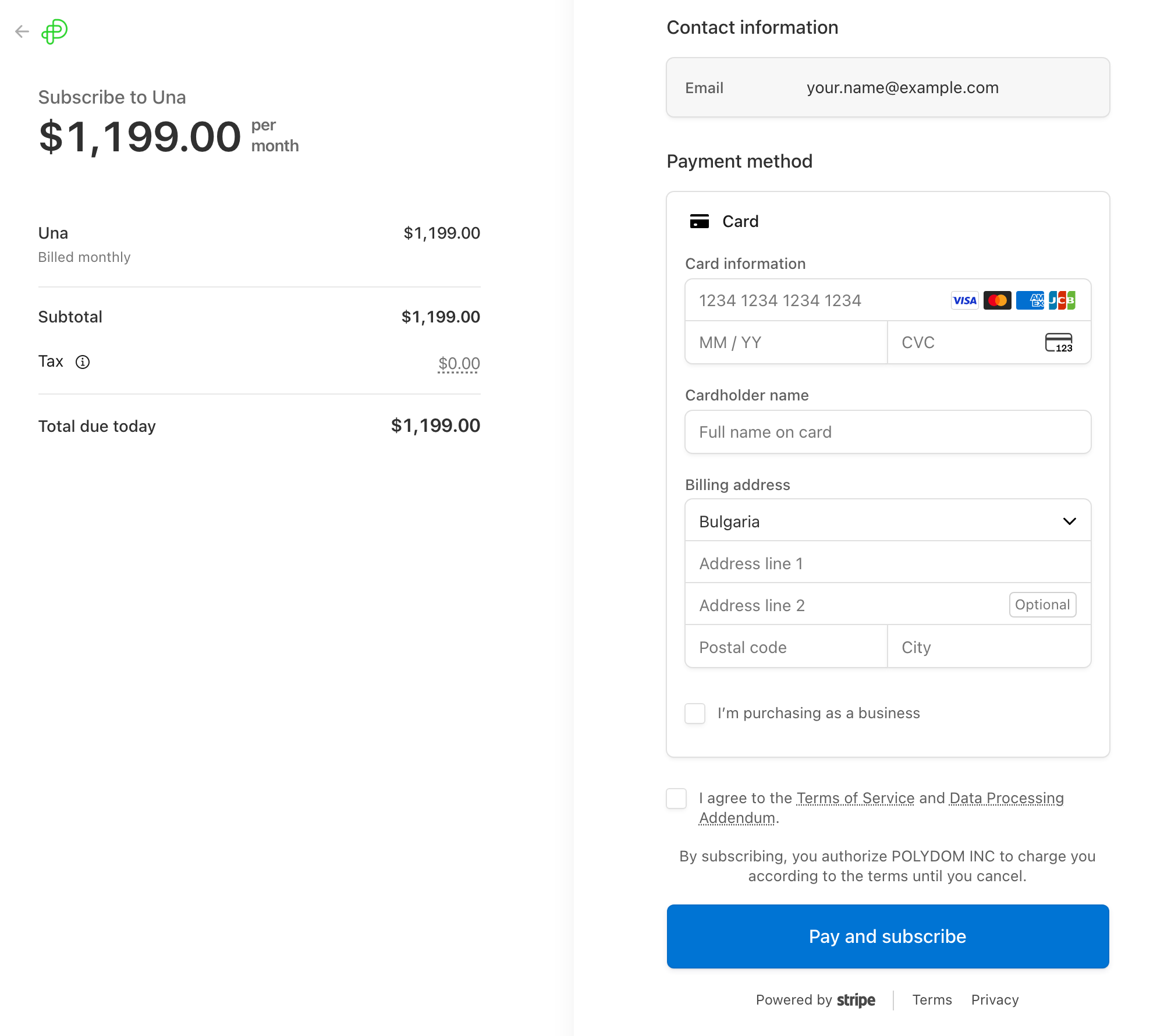
Check the price on Stripe's secure page
Billing starts right away, with no trial. Total due today is the monthly price plus any tax.
-
Fill in your payment details
Enter your card and billing address, and tick the box to agree to the Terms of Service and Data Processing Addendum. If you buy as a business, tick I'm purchasing as a business.
-
Click Pay and subscribe
Back in Polydom, keep the window open while it shows Processing Payment and then Payment Successful!
-
Check the status
Agent Status at the top of the dashboard changes to Active. If it hasn't changed after a minute, reload the page.
If you leave the Stripe page without paying, nothing is charged and you can pay later from the same banner.
Each agent has a separate monthly subscription. To see invoices, change the card or cancel, see Billing and Subscriptions.
If Your Agent Is Inactive
An inactive agent doesn't answer guests. This happens when a sandbox date passes, a subscription is canceled, or a payment can't be collected.

Click Pay for subscription and complete the payment as above. Una comes back with the same settings and knowledge base.
If a Payment Fails
If Stripe can't charge your card for a renewal, Una's dashboard shows an orange banner. Una keeps working until Stripe stops trying to collect the payment. That can happen before the Ends date on the banner, so update your card right away.

-
Click Update payment method. On a phone, it reads Update payment. The Billing page opens.
-
On the agent's subscription, click Update Payment Method.
-
On Stripe's page, add a new card or update the current one.
Once Stripe collects the payment, the banner goes away. If it can't be collected, Una becomes inactive and your company's members receive an email titled Agent has been deactivated.
Troubleshooting
-
I don't see Pay for subscription. You may have the Readonly role. Ask an Owner or Admin to pay, or to change your role.
-
The agent still shows Inactive after I paid. Reload the page after a minute. If nothing changes, click Contact support in the sidebar to reach the Polydom team.