
Deploy & Share
Publish your widget on your website, copy the direct widget link, and generate a QR code PDF for offline sharing.
What the Deploy & Share Page Is For
After you finish configuring your widget, the Deploy & Share page gives you the assets you need to publish it:
the website embed code
a direct widget link
a downloadable QR code
Open it from Settings > Deploy & Share for the selected agent.
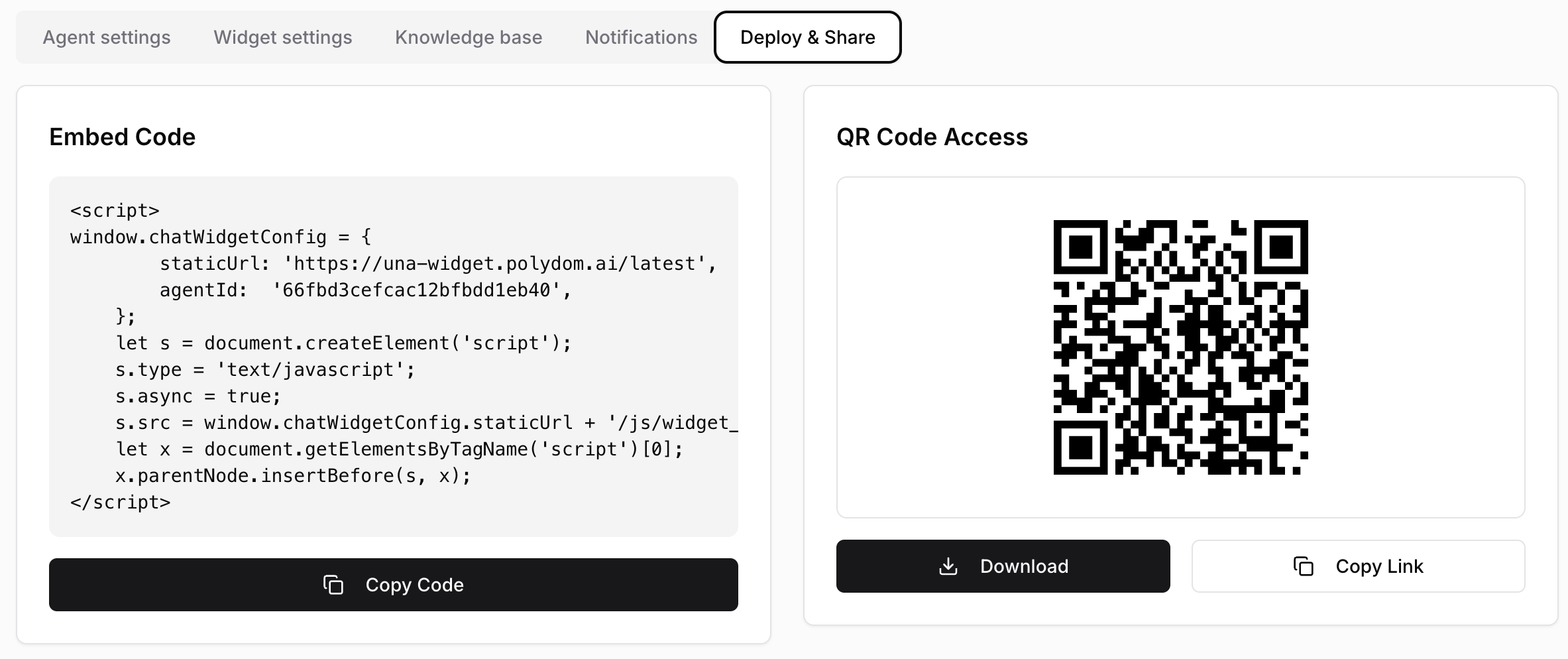
Embed Code
The Embed Code card shows the code snippet for your widget.
To publish the widget on your website:
Open Deploy & Share
Copy the embed code
Paste it into your website HTML, typically before the closing
</body>tagPublish the website changes
After deployment, the widget should appear automatically on the site pages where the code is installed.
Copying the Code
Use Copy Code to place the full embed snippet on your clipboard. This is the fastest option if you are sending the code to a developer or adding it directly to a website builder.
QR Code Access
The same page also shows a QR code that opens a full-screen version of your widget.
This is useful for:
printed flyers
front-desk signage
room cards
lobby displays
offline campaigns that should lead directly into a chat
Downloading the QR Code PDF
Use Download to create a ready-to-print PDF version of the QR code.
The PDF includes:
your company name
the QR code centered on the page
This is helpful when you want a printable asset without designing it manually.
Copying the Direct Link
Use Copy Link when you want to share the widget without embedding it on a website.
You can send the link in:
email campaigns
WhatsApp
social media profiles
internal testing messages
Guests who open the link are taken directly to the standalone widget page.
When to Use Each Option
Embed Code — when the widget should appear inside your website
Copy Link — when you want to share a direct hosted version
QR Code PDF — when the widget needs to be accessible from printed materials
Many teams use all three.
Before You Publish
Before using Deploy & Share, make sure you have already checked:
widget texts and colors in Setting Up Your Chat Widget
greeting and agent name in Agent Settings
Knowledge Base content in Knowledge Base
Troubleshooting
Widget does not appear on the site: confirm the embed code was placed correctly and the page was republished
Wrong agent opens: verify that you copied the code or link from the correct selected agent
QR code opens an outdated experience: recheck the selected agent and regenerate or re-download the PDF if needed