
Viewing and Managing Chats
View conversations with guests, organize them with tags, and download recordings.
Chat List
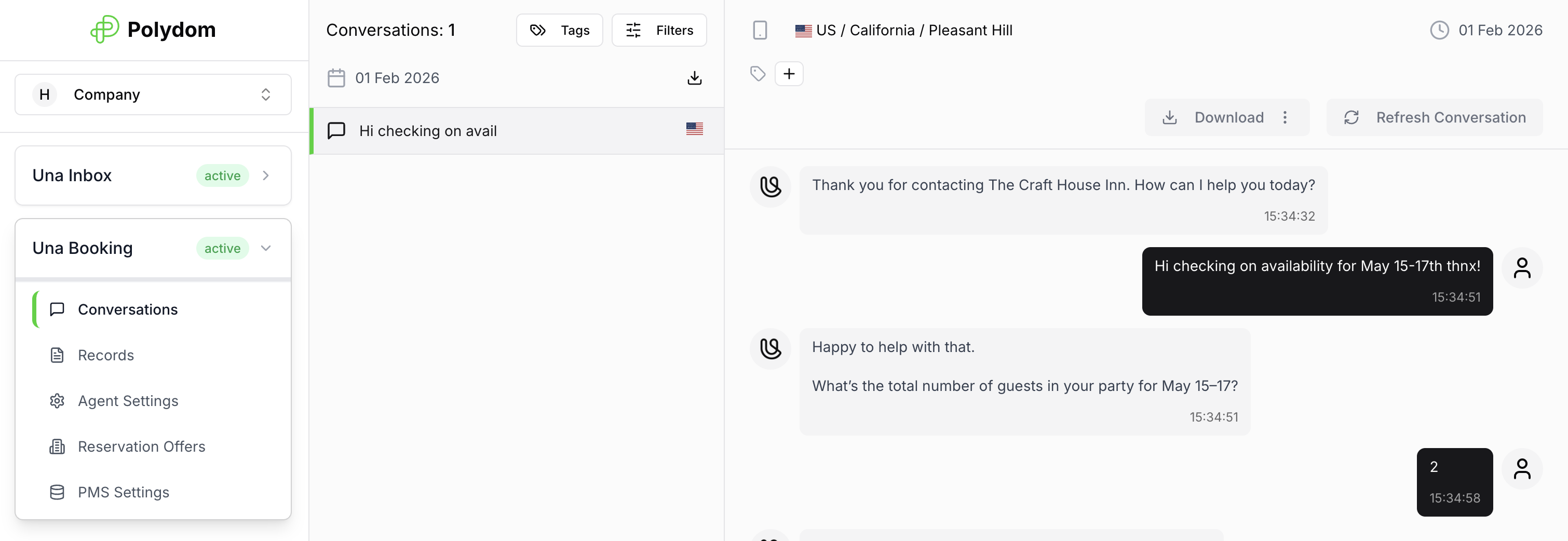
The Conversations section is where you review all guest interactions handled by your agent. The screen is split into two parts:
the conversation list on the left
the selected conversation view on the right
Each conversation row usually shows:
guest name or identifier
source icon
message preview
time or date of the latest activity
Click any conversation to open the full history.
Filtering the List
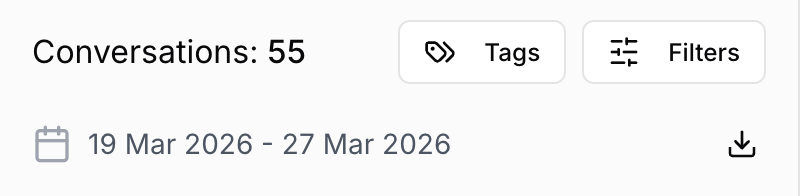
Use the controls at the top of the Conversations screen to narrow the list:
Tags — show only conversations with specific tags
Filters — open options for date range, source, chat type, and other conditions
Download — export conversations for the selected date range
For a detailed breakdown of filters and chat sources, see Chat Sources and Filters.
Conversation Details
When you open a conversation, the detail view shows the message thread and related guest information.
At the top of the conversation you may see:
phone number, email, or platform username
conversation source
tags
device or location information, when available
Within the thread:
guest messages appear separately from Una's replies
system events may appear for actions such as form submissions
linked conversations can appear when a chat was transferred between agents
Tags
Tags help your team organize chats by intent, urgency, guest type, or workflow stage.
To use tags:
Open a conversation
Click the + button in the tags area
Select an existing tag or create a new one
Remove a tag by clicking it again when needed
Useful examples include VIP, booking, follow-up, or needs-human.
Downloads
Depending on the conversation type, you can download content directly from the Conversations area.
Phone calls may include downloadable call recordings
Conversation exports let you save chats as text for review or sharing
Best Practices
Use filters first when you are looking for a specific period or channel
Add tags consistently across the team
Export or download important conversations before sharing them outside the platform
Empty States
Empty results usually mean the selected filters are too narrow or there were no conversations in that period
If your conversation list is empty, try widening the date range or clearing filters