
Managing Team Members
Invite, manage, and remove team members with different role permissions.
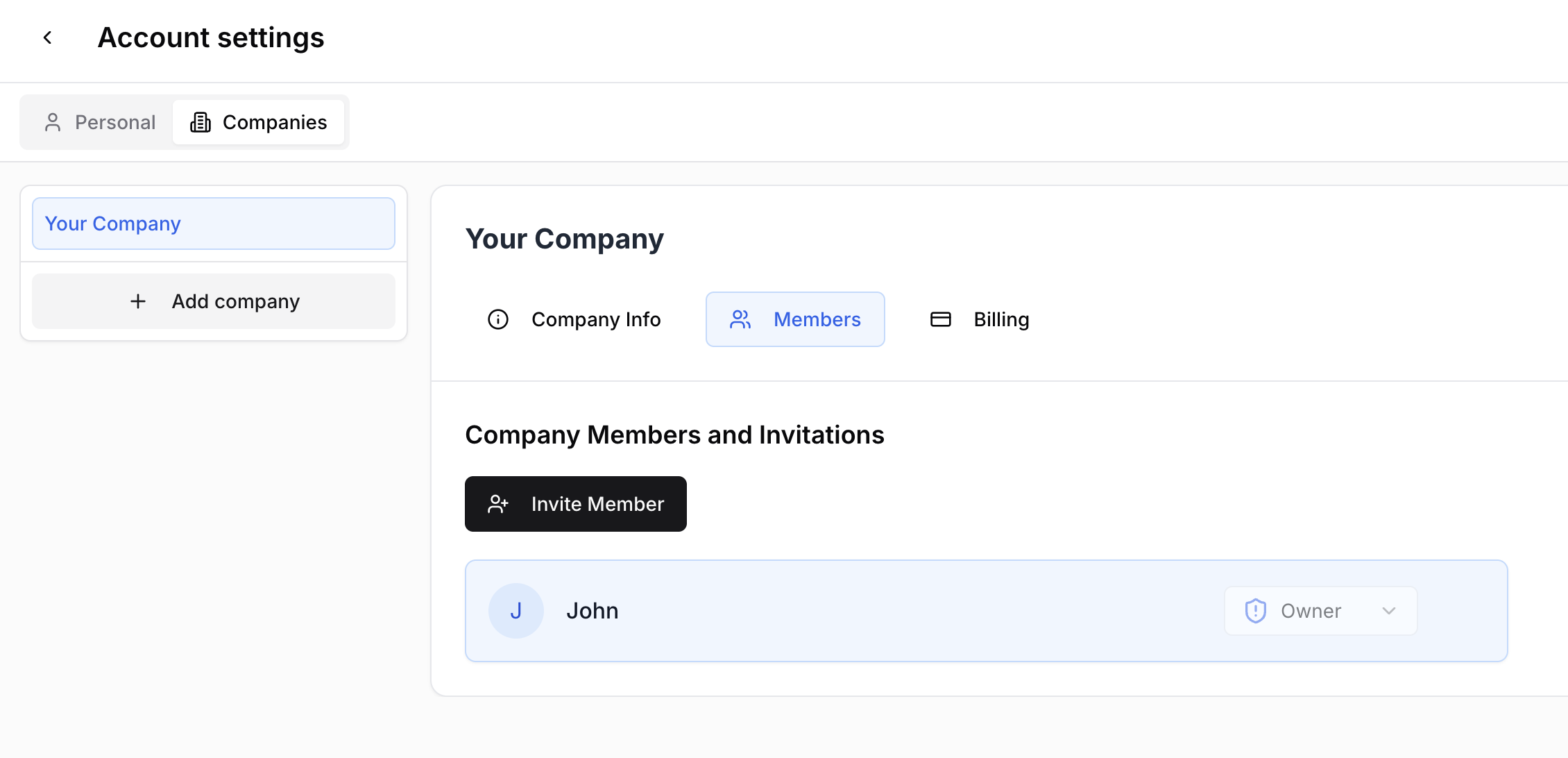
Accessing Members
Go to Account Settings > Companies
Select your company
Click Members
Roles
Owner
Full access to everything
Can manage members, billing, and settings
Can transfer ownership
One per company
Admin
Full access to features and settings
Can invite and manage members (except owner)
Can manage billing
Read-only
View-only access
Cannot make changes or invite members
Cannot access billing
Inviting Members
Click Invite Member
Enter the team member's email
Select their role (Admin or Readonly)
Click Send Invitation
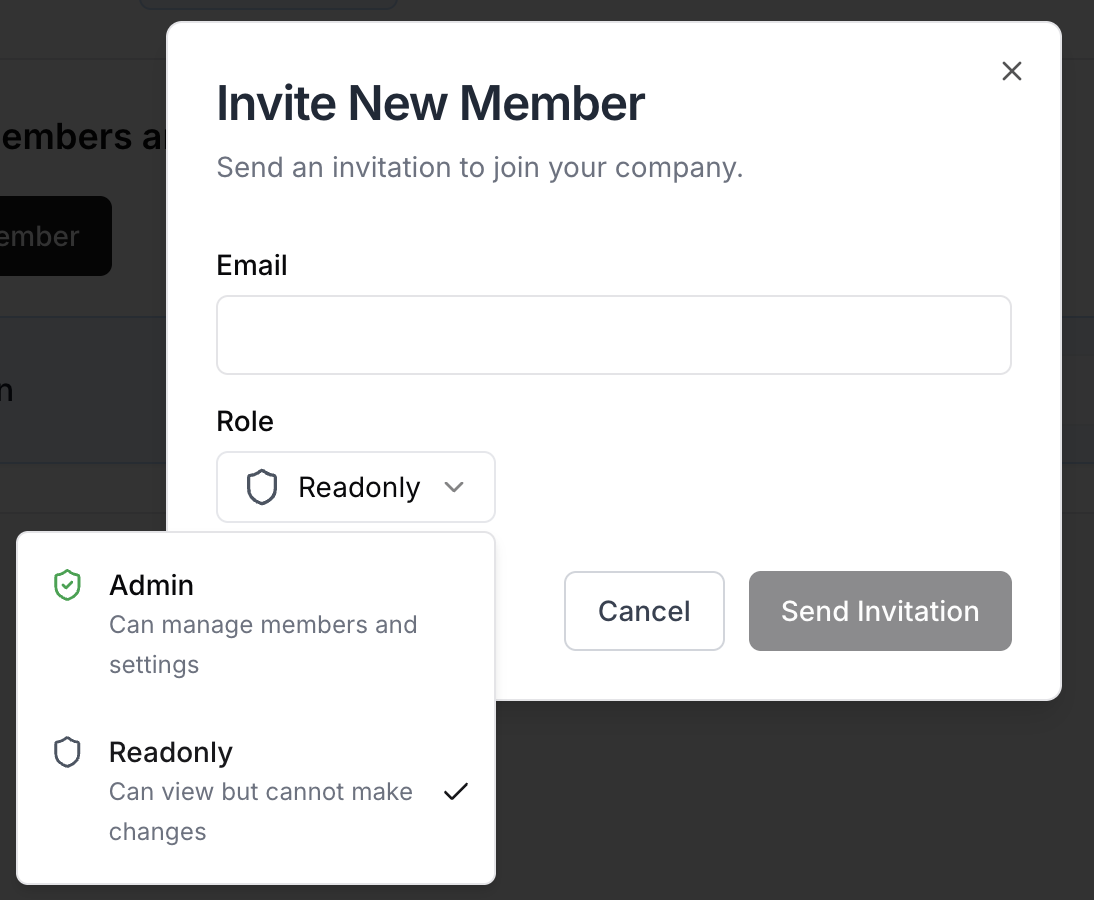
The member receives an email invitation. After accepting, they appear in your members list.
Changing a Member's Role
Find the member in the list
Click their role dropdown
Select a new role
Change applies immediately
Removing Members
Click the three-dot menu next to their name
Select Remove Member
Confirm — access is immediately revoked
Transferring Ownership
Click the three-dot menu next to the member
Select Transfer Ownership
Confirm — they become Owner, you become Admin
Managing Pending Invitations
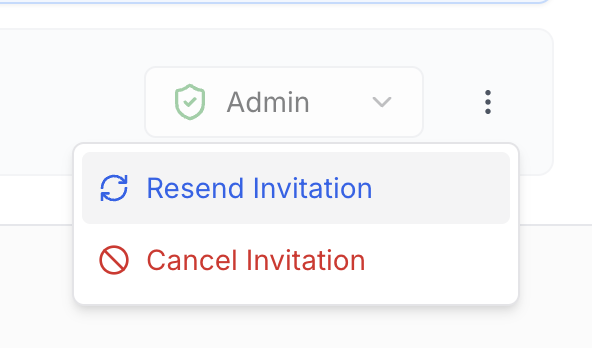
Resend — three-dot menu > Resend Invitation
Cancel — three-dot menu > Cancel Invitation