
Managing Records
View and filter guest records, leads, and contact information collected by your agent during conversations.
What Are Records?
When Una collects structured information from guests during conversations, that data is saved as records. Records can include contact details, booking requests, lead information, or any other form-style data your agent is configured to collect.
Records are grouped into tables. Each table corresponds to a notification category — for example, Escalations, Leads, or any custom category configured for your agent.
Accessing Records
Select your agent in the sidebar
Click Records in the sub-navigation
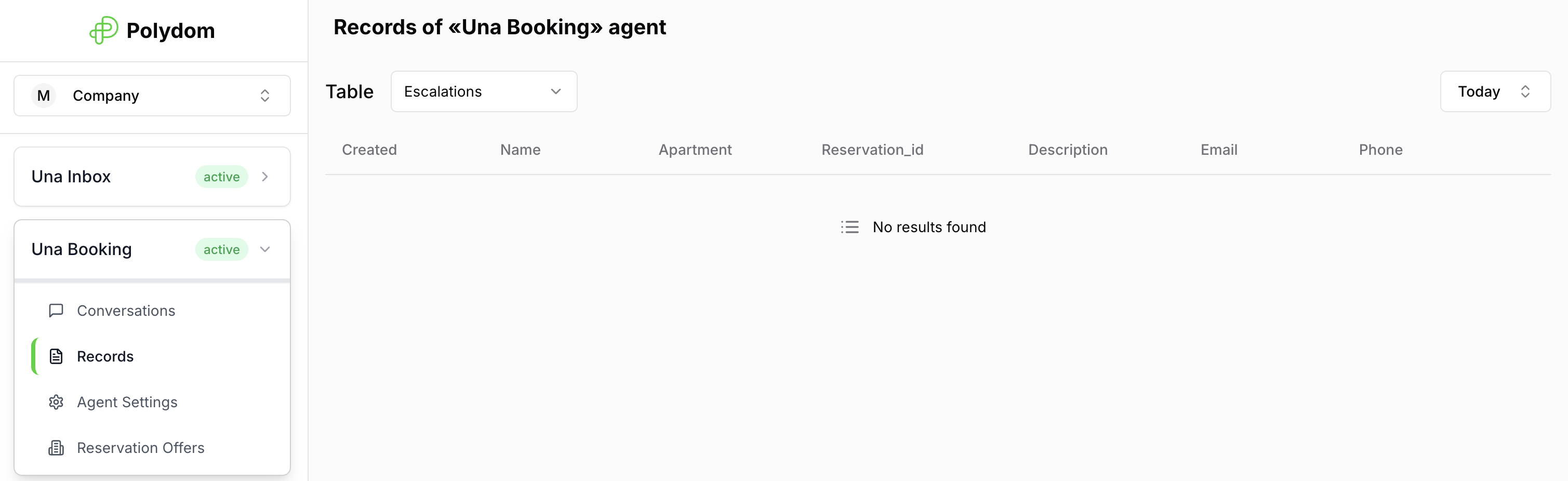
Choosing a Record Table
At the top of the page, use the Table selector to choose which record set you want to review.
Common tables include Escalations and Leads, but your agent may have additional categories depending on the setup. See Notifications for details on how categories work.
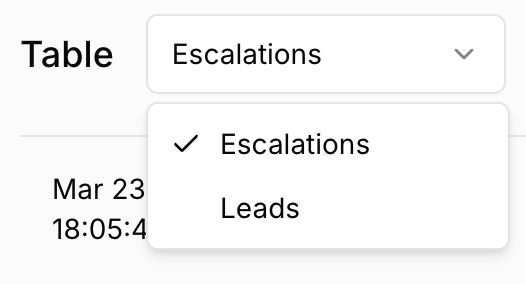
Browsing Records
Records are displayed in a table with one row per submission. Use the controls at the top to work with the data:
Table selector — switch between record types
Date range — choose Today, This Week, This Month, Last Week, Last Month, or a custom range
Pagination — move through pages of results when there are many records
Columns are generated from the selected table, so the visible fields can change depending on the type of record you are viewing.
Opening the Source Conversation
Each record row includes a shortcut back to the related conversation.
Use this when you need to:
see the full guest context behind a lead
understand what the guest asked before submitting details
review the exact wording Una used
Working with Date Filters
Date filters are useful when you want to:
review only recent leads
compare weekly or monthly performance
prepare a report for a specific period
investigate a spike in submissions
If you are not seeing the record you expect, widen the date range first.
Record Notifications
You can configure notifications so your team is alerted when new records are collected. Go to Settings > Notifications to configure:
Email notifications — receive an email when a new record is created. Add multiple recipients.
WhatsApp notifications — get a WhatsApp message for each new record. Add multiple phone numbers.
Notifications can be configured separately for each record type.
For step-by-step instructions, see Notifications.