
Connecting Your AI Assistant with MCP
Connect your own Claude or ChatGPT to Polydom through MCP and ask about Una's conversations, statistics, bookings and knowledge base. Read only.
On this page
MCP (Model Context Protocol) is the standard way for AI assistants to connect to other services. Polydom has its own MCP connector, so you can add it to your own Claude or ChatGPT and ask about Una's work in plain language: how last week went, what guests ask about, which bookings Una created, what is in Una's knowledge base. You don't need to know how MCP works to use it.
The connection is read only. Your assistant can't reply to guests, and it can't change anything in Polydom.
Before You Start
-
You need a Polydom account and your own Claude or ChatGPT account.
-
Each person connects for themselves, with their own Polydom login. The assistant sees what that person sees on the dashboard, in every company they have access to.
-
What the assistant reads, guest names, phone numbers and emails included, goes to the AI service you connect, under your account with that service. Check that this suits your company's rules before you connect.
Connecting Claude
The server address is:
https://mcp.polydom.ai/mcp
On a Free, Pro, Max or Ultra plan:
-
In Claude, open Customize, then Connectors, or go straight to claude.ai/customize/connectors
-
Click Add, then Add custom connector
-
Under Name, enter Polydom, and under MCP server URL, paste the address above
-
Click Continue and finish adding the connector
-
Click Connect if it isn't connected yet
-
Sign in to Polydom if asked, check the access screen and click Allow
The Free plan allows one custom connector.
On a Team or Enterprise plan, an Owner adds the connector once:
-
Open Organization settings, then Connectors
-
Click Add, then Custom. If asked for the type, choose Web
-
Paste the address above and click Add
After that, each member opens Customize, then Connectors, finds the connector with the Custom label, clicks Connect and clicks Allow on the access screen.
To turn the connector on or off for one conversation, click the + button in the chat and open Connectors. If the menus look different, see Claude's guide to custom connectors.
Connecting ChatGPT
OpenAI offers custom connections on the Pro, Business, Enterprise and Edu plans, on the ChatGPT website only. On Business and Enterprise plans, an admin or owner usually adds the connection and publishes it for the workspace, so ask yours if you don't see the option.
-
In ChatGPT, open Plugins in the left sidebar, or go straight to chatgpt.com/plugins
-
Click Add, then Add custom MCP server
-
Under Name, enter Polydom
-
Under Connection, paste the server address above. Leave Authentication on OAuth
-
Review the risk warning and tick I understand and want to continue
-
Click Create as a plugin
-
Click Install plugin
-
Sign in to Polydom if asked, check the access screen and click Allow
To use it, start a new conversation, type @ in the message box and pick Polydom. Mention it again when a follow-up question needs new data. If the menus look different, see OpenAI's guide to custom MCP servers.
Connecting Claude Code
If you use Claude Code, run this in your terminal:
claude mcp add --transport http polydom https://mcp.polydom.ai/mcp
Then start Claude Code, type /mcp, select polydom and choose Authenticate. Your browser opens the Polydom access screen.
The Access Screen
Every connection ends on this screen in Polydom. It names the assistant asking for access and lists what it will be able to read.
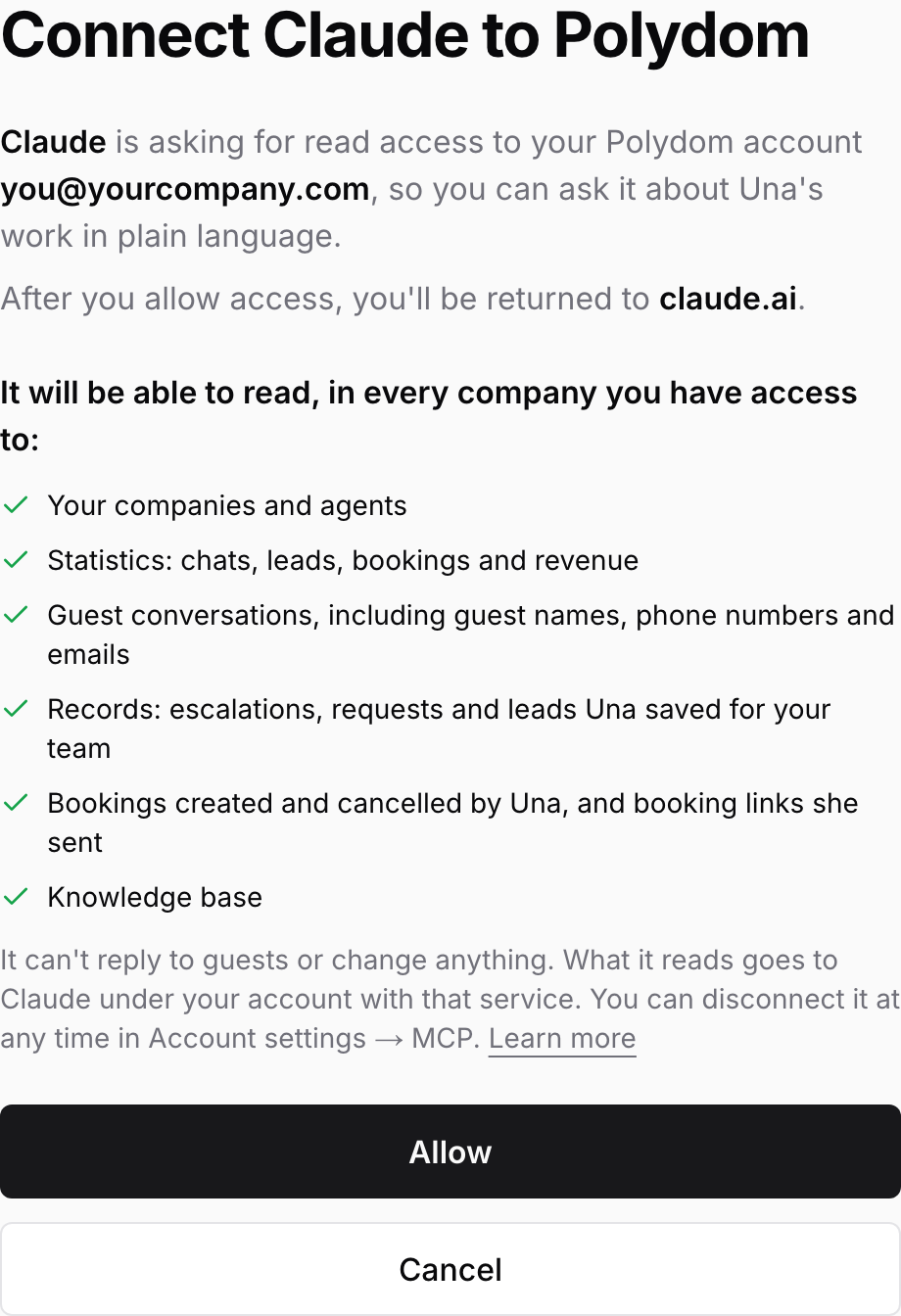
Click Allow only if you started the connection yourself. Cancel closes the request and nothing is connected.
What Your Assistant Can Read
-
Your companies and agents
-
Statistics: chats, leads, bookings and revenue, the same figures as on the statistics page
-
Guest conversations: the full messages, including guest names, phone numbers and emails
-
Records: the escalations, requests and leads Una saved for your team
-
Bookings created and cancelled by Una, and the booking links Una sent
-
Knowledge base: the filled-in fields of each agent
Questions to Try
-
"How did Una do last week? Compare it with the week before."
-
"Which channels brought the most conversations this month?"
-
"Find conversations from the last two weeks where guests asked about parking, and tell me what Una answered."
-
"List this month's escalations and group them by topic."
-
"Which bookings did Una create last week, and what was the revenue?"
-
"Read our knowledge base and tell me which questions from last week's conversations it doesn't cover."
Good to Know
-
Default period: unless you ask for other dates, the assistant looks at the last 7 days and all your agents. Test conversations are left out.
-
Long conversations: a period selects conversations in which the guest wrote or spoke during it. A long WhatsApp or PMS thread that started earlier is listed for this month if the guest wrote this month.
-
Knowledge base: it is not everything Una knows. Una also follows the configured instructions and, when your PMS is connected, reads live rates and availability. A fact missing from the knowledge base doesn't mean Una can't answer it.
-
Staying connected: after 30 days without use, the connection expires and you connect again.
-
Changes: to change anything, such as a knowledge base field, use the dashboard. The assistant can't do it for you.
-
Mistakes: the data comes from Polydom, but the summary is written by your assistant, and it can get things wrong. Check anything important on the dashboard. Answers usually include a link to the right page.
Disconnecting
-
Click Account Settings
-
Open MCP
-
Click Disconnect next to the assistant and confirm
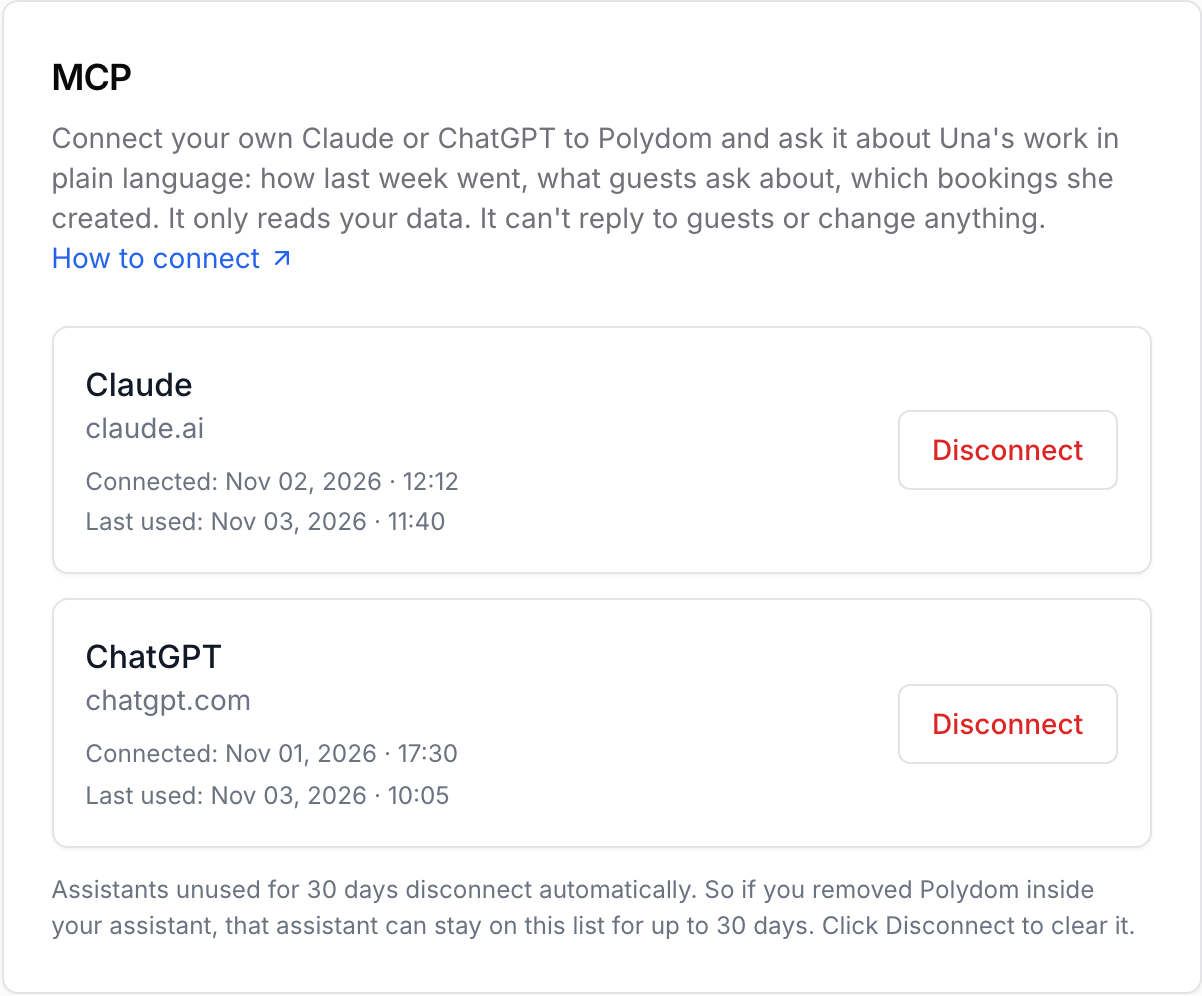
The assistant loses access to your Polydom data within about 5 minutes. To use it with Polydom again, connect it again. This page also shows when each assistant connected and when it was last used.
You can also remove the connector in Claude or ChatGPT, but only Disconnect in Polydom ends its access on our side.
If you removed the connector in Claude or ChatGPT, it can stay on this list for up to 30 days. Click Disconnect to remove it.
Troubleshooting
The assistant doesn't use Polydom. Check that the connector is on for this conversation, or mention Polydom in your question. In ChatGPT, pick it with @.
A conversation you know about isn't found. The guest probably didn't write or speak in it during the period you asked about. Ask for the dates when the guest wrote or spoke.
A search over a long period fails. Ask for shorter dates, for example one month at a time.
You don't see the option to add a connector. On Team, Enterprise and Business plans an admin or owner may need to add it or give you permission.