
Connecting Gmail or Outlook
Let Una answer guest emails from your own Gmail or Outlook mailbox.
On this page
Una can answer guest emails in your own Gmail or Outlook mailbox, including Google Workspace and Microsoft 365. Una replies from that address, in the same email thread, so guests see a normal reply from you.
Before You Start
-
Ask the Polydom team to add your mailbox to your agent. Tell them the address and whether it's on Gmail or Outlook. A Gmail Skill or Outlook Email tab then appears in Agent Settings.
-
You need the mailbox login and the Owner or Admin role in the dashboard.
Connect Your Mailbox
-
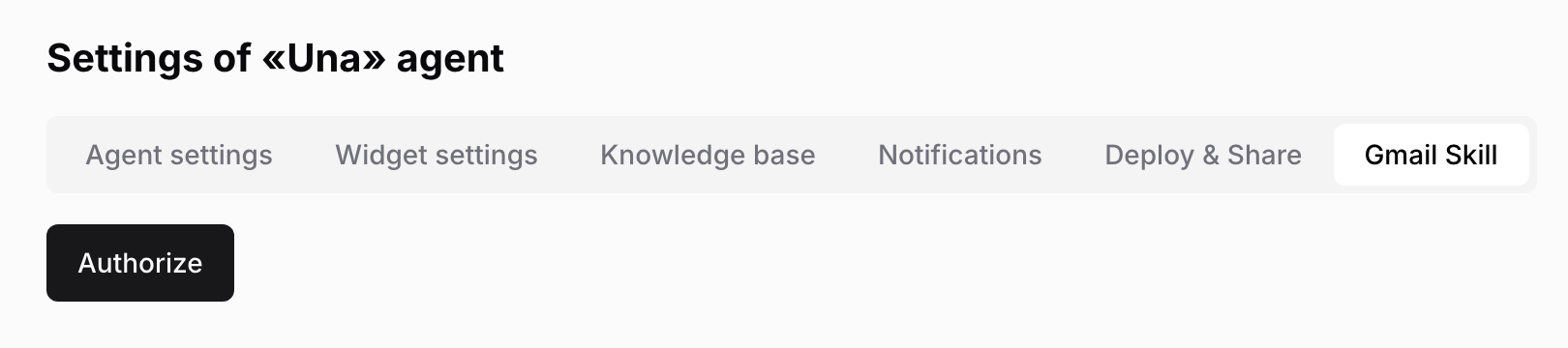
Select your agent in the sidebar and click Agent Settings, then Gmail Skill
-
Click Authorize
-
On the Google page, sign in to the mailbox and allow the access Polydom asks for
-
Back on the tab, the button now reads Clear authorization. The mailbox is connected
-
Tell the Polydom team you've done this. They switch replies on
-
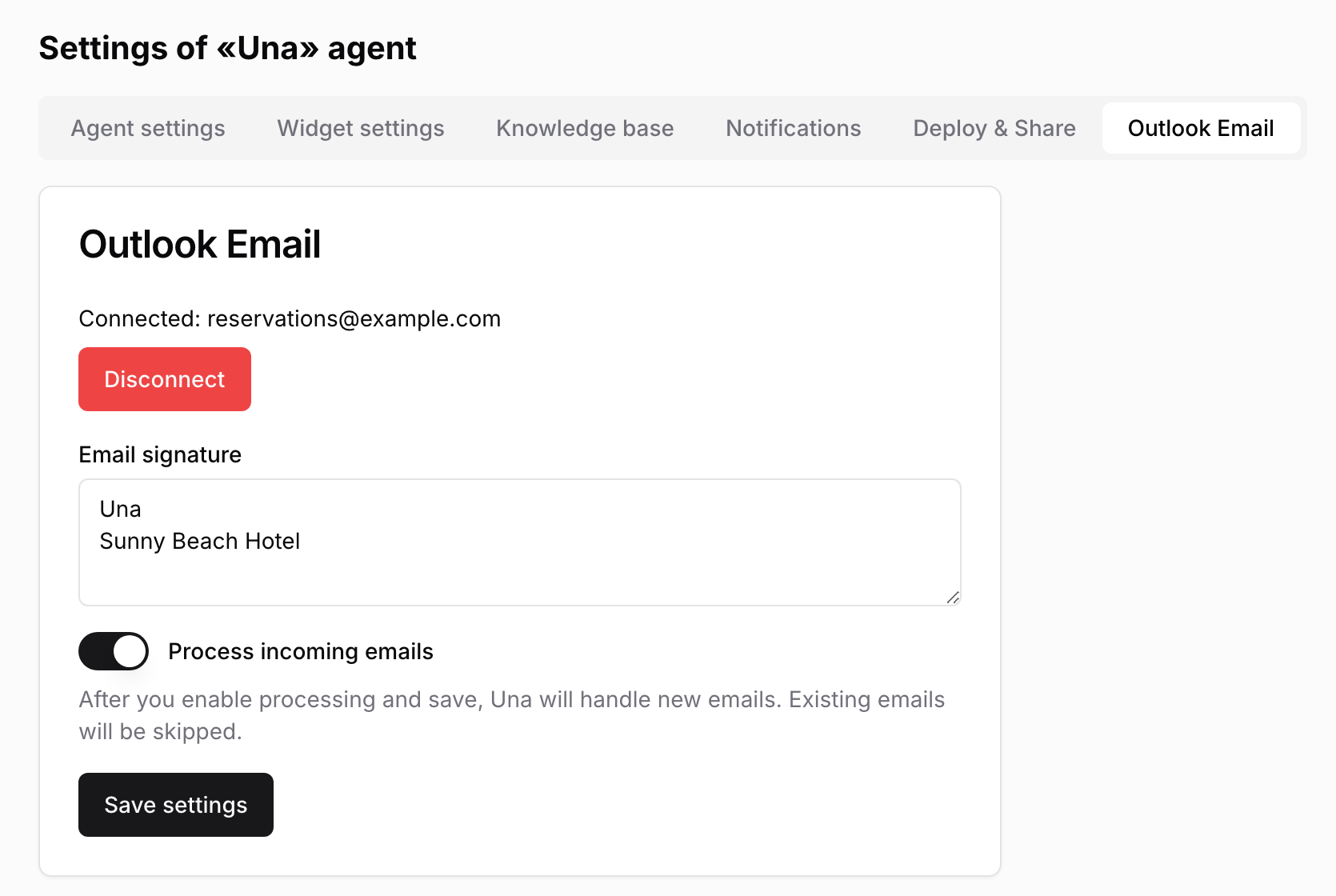
Select your agent in the sidebar and click Agent Settings, then Outlook Email
-
Click Connect Microsoft account
-
On the Microsoft page, sign in to the mailbox and accept the permissions
-
Back on the tab, you see Connected: and the mailbox address
-
Optional: enter an Email signature. Una adds the signature to replies
-
Switch on Process incoming emails
-
Click Save settings. You will see Outlook settings saved
Una doesn't answer until you switch on Process incoming emails and save.
Una only answers emails that arrive after replies are on. Emails already in your mailbox are skipped.
Which Emails Una Answers
Una checks the mailbox about every five minutes and reads new emails in the inbox. Una skips:
-
emails a mailbox rule moves out of the inbox
-
automatic replies, newsletters and bulk mail
-
senders whose address contains words such as noreply, notifications, support, helpdesk or alert
The Polydom team can also set up email sorting for your mailbox. Una then answers guests, forwards emails meant for your team to an address you agree with the Polydom team, and ignores spam. Forwarded emails and spam don't appear in Conversations.
Una doesn't pause when someone on your team replies in the mailbox. Una answers the guest's next email too.
Pausing or Disconnecting
-
Outlook, pause: switch off Process incoming emails and click Save settings.
-
Outlook, disconnect: click Disconnect on the Outlook Email tab. To connect again, repeat all the steps above.
-
Gmail, disconnect: click Clear authorization on the Gmail Skill tab. To connect again, click Authorize and ask the Polydom team to switch replies back on. To pause without disconnecting, ask the Polydom team.
Emails that arrive while Una is paused or disconnected aren't answered later. Nothing is deleted from your mailbox or your past conversations.
Troubleshooting
There is no Gmail Skill or Outlook Email tab. The Polydom team hasn't added the mailbox yet. Contact them.
The Gmail Skill tab shows Authorize again, or the Outlook Email tab shows No Microsoft mailbox connected. The connection was lost, for example after a password change. Connect again as above.
Outlook connection failed. If the message mentions consent or access, your organization may require an administrator to approve new apps. Ask your Microsoft 365 administrator, then click Back to agent settings and connect again. If it says the request is no longer available, start again and finish signing in within about 10 minutes, in the same browser tab.
Una doesn't answer an email. Check that replies are on, that the email arrived in the inbox after that, and that it isn't on the skip list above. With email sorting, it may have been forwarded or treated as spam. If you think it was sorted wrongly, contact the Polydom team.